Recommended: Reinstall the latest version. The newest release no longer requires kernel installation, needs no reboot, and delivers a stable one-click setup.
FAQ: Optional Resource Sharing (Bright Data)
You may receive an ad-free experience or free features. In exchange, you may securely share some of your device resources in a way that will not materially impact user experience or performance of other running applications. You can disable this feature at any time by going to Settings and turning off the related toggle (for example, Settings → “Support Open Source” / “Resource Sharing”, if present). For more information, please see our Installation Agreement, our Privacy Policy (Bright Data Program), and the SDK privacy policy (https://bright-sdk.com/privacy-policy).
Choose a language:
Reason for Installing the NTFSTool Kernel Extension
Due to Microsoft's licensing restrictions, MacOS has removed support for NTFS disk format under Windows system. Therefore, to support NTFS disk again, it is necessary to install NTFS driver in MacOS kernel.Requirements and Steps for Installing Drivers in MacOS Kernel:
For Intel Chip Systems
Requirements:
- Disable System Integrity Protection (SIP)
Steps:
- Enter system recovery mode, disable System Integrity Protection (SIP)
Completely shut down your Mac, then start it up, and immediately press and hold Command+R during startup until the Apple logo appears for 3 seconds, then release the button and wait to enter Recovery mode - Click 'Utilities' in the top toolbar, select 'Terminal'
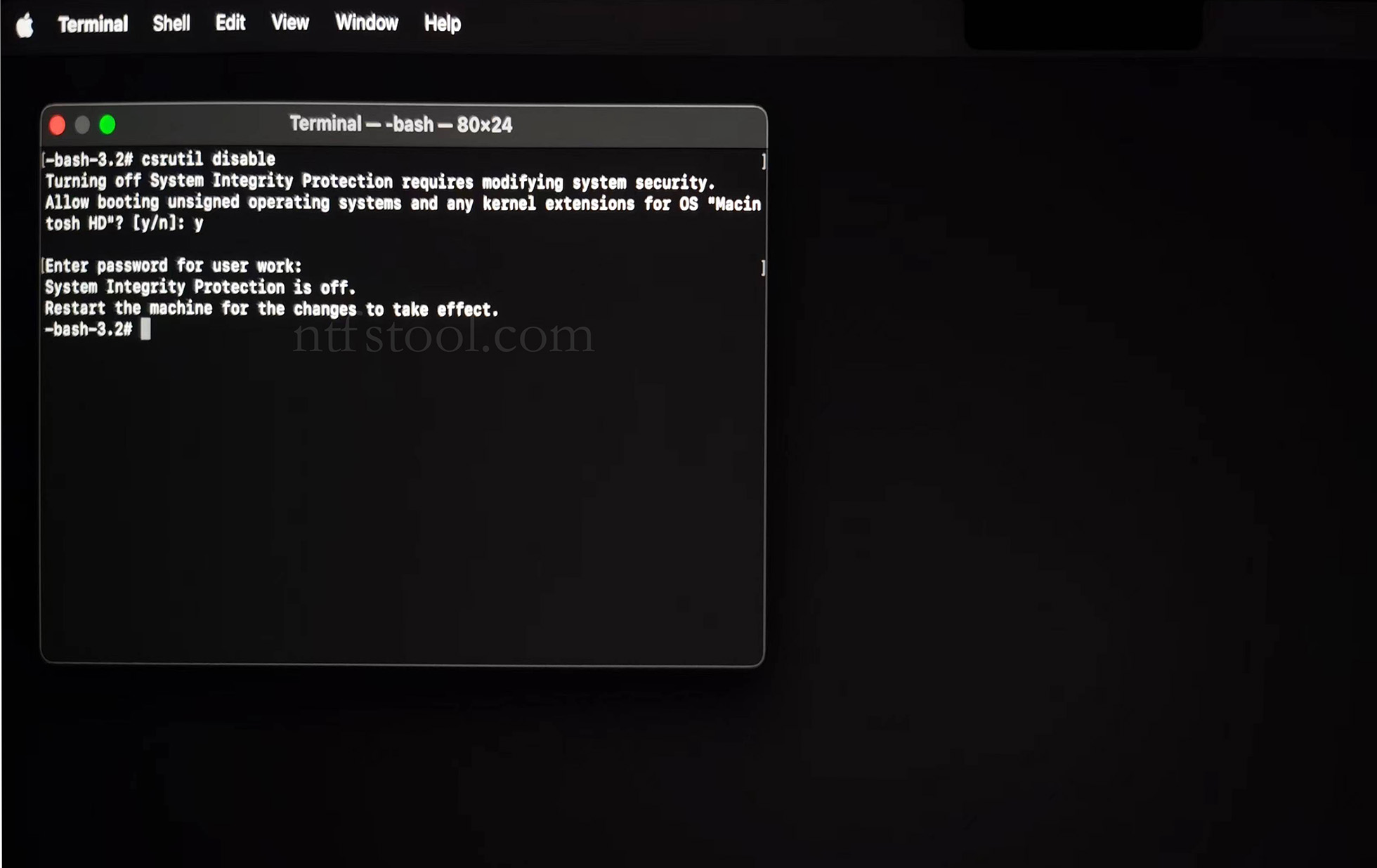
- Type 'csrutil disable' in the terminal, then press Enter
- Close the terminal and restart your Mac
- Related Screenshots
For M1/M2/M3... and other Apple Chip Systems
Requirements:
- Disable System Integrity Protection (SIP)
- Enable the option 'Allow user management of kernel extensions from identified developers'
Steps:
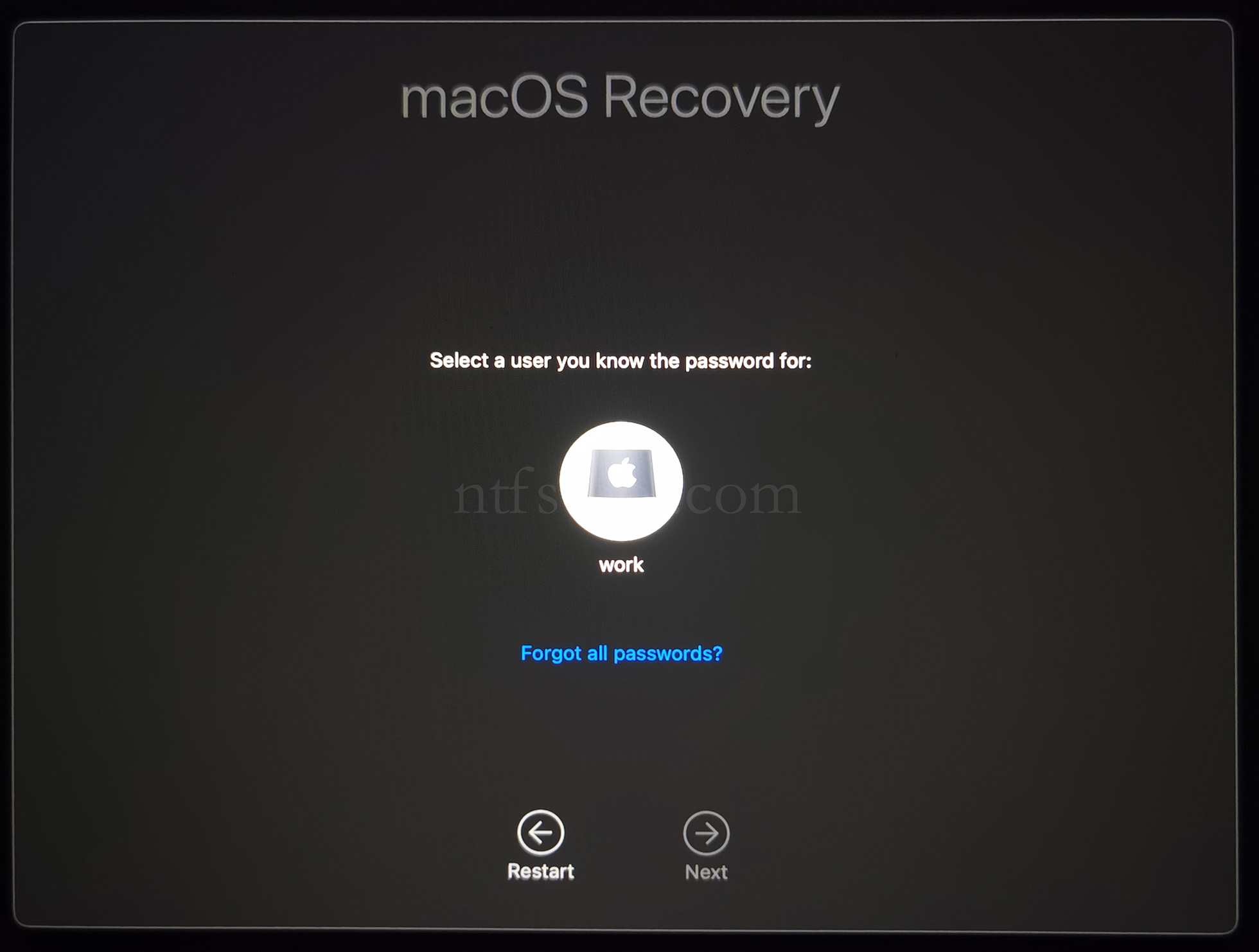
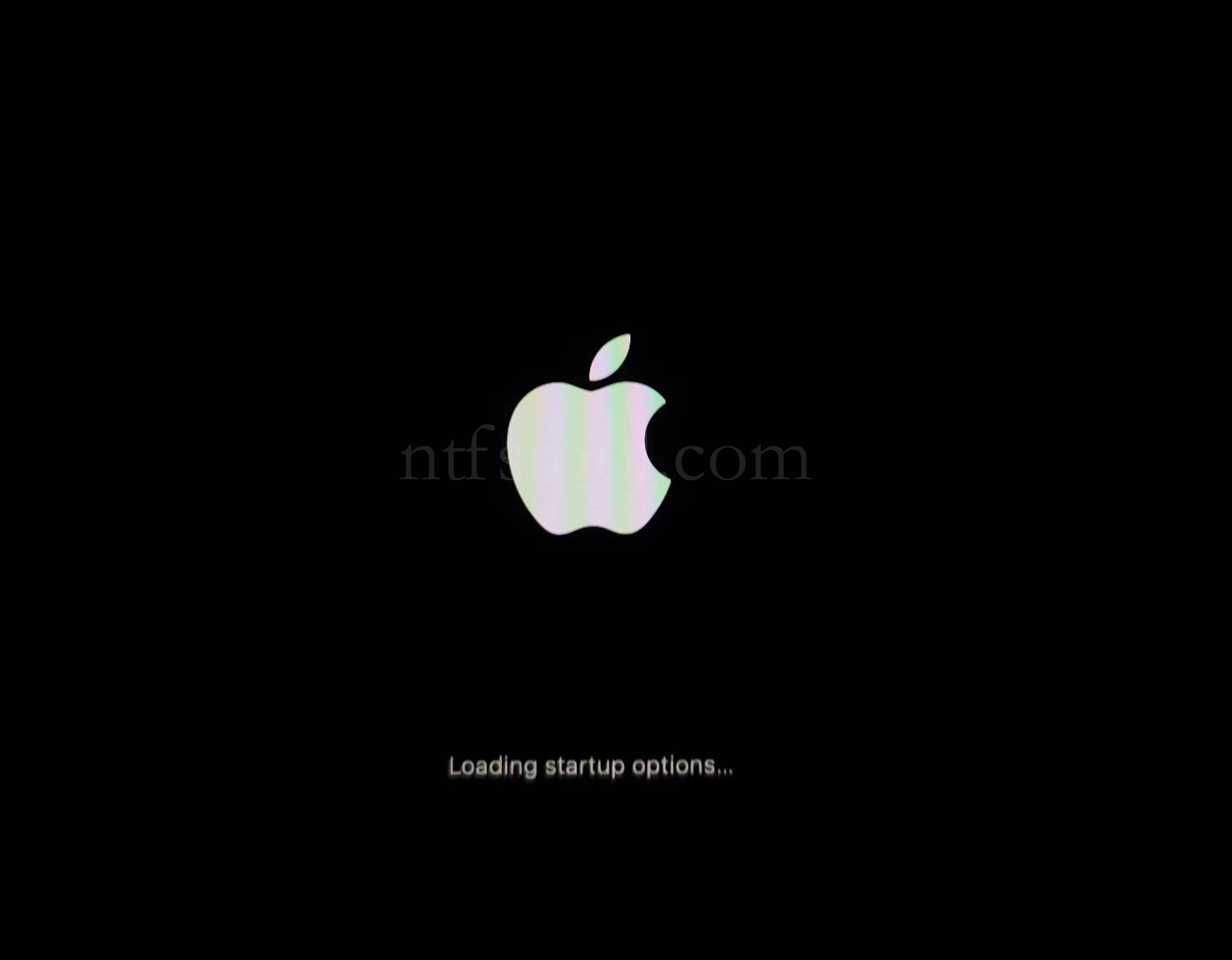
- Restart and hold the power button until the text 'Loading startup options' appears, then release the power button and enter system recovery mode
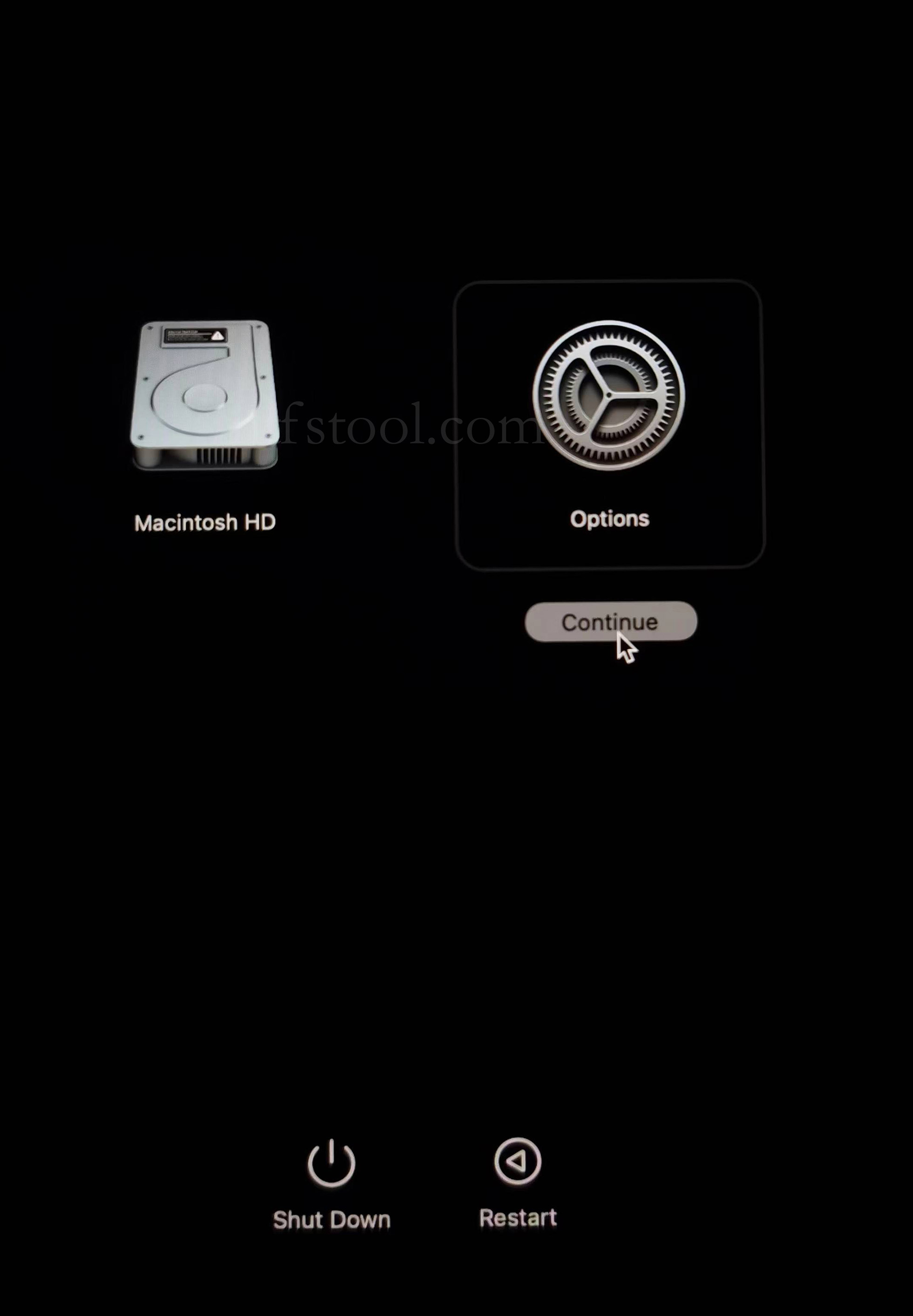
- Select the 'Options' icon, click 'Continue'
- Select the admin user, and enter the password to log in
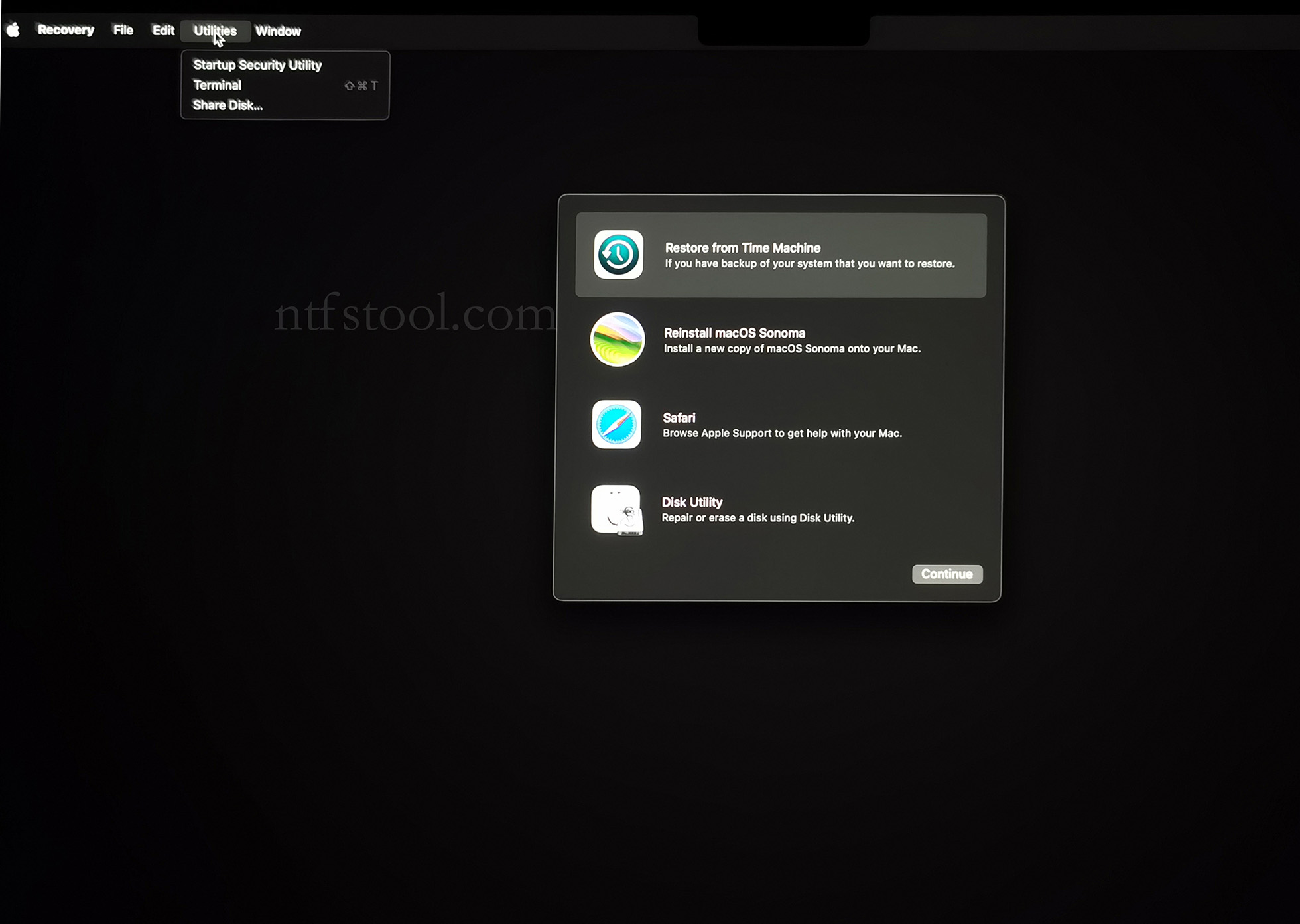
- Click 'Utilities' in the top toolbar, select 'Terminal'
- Type 'csrutil disable' in the terminal, then press Enter
- Close Terminal
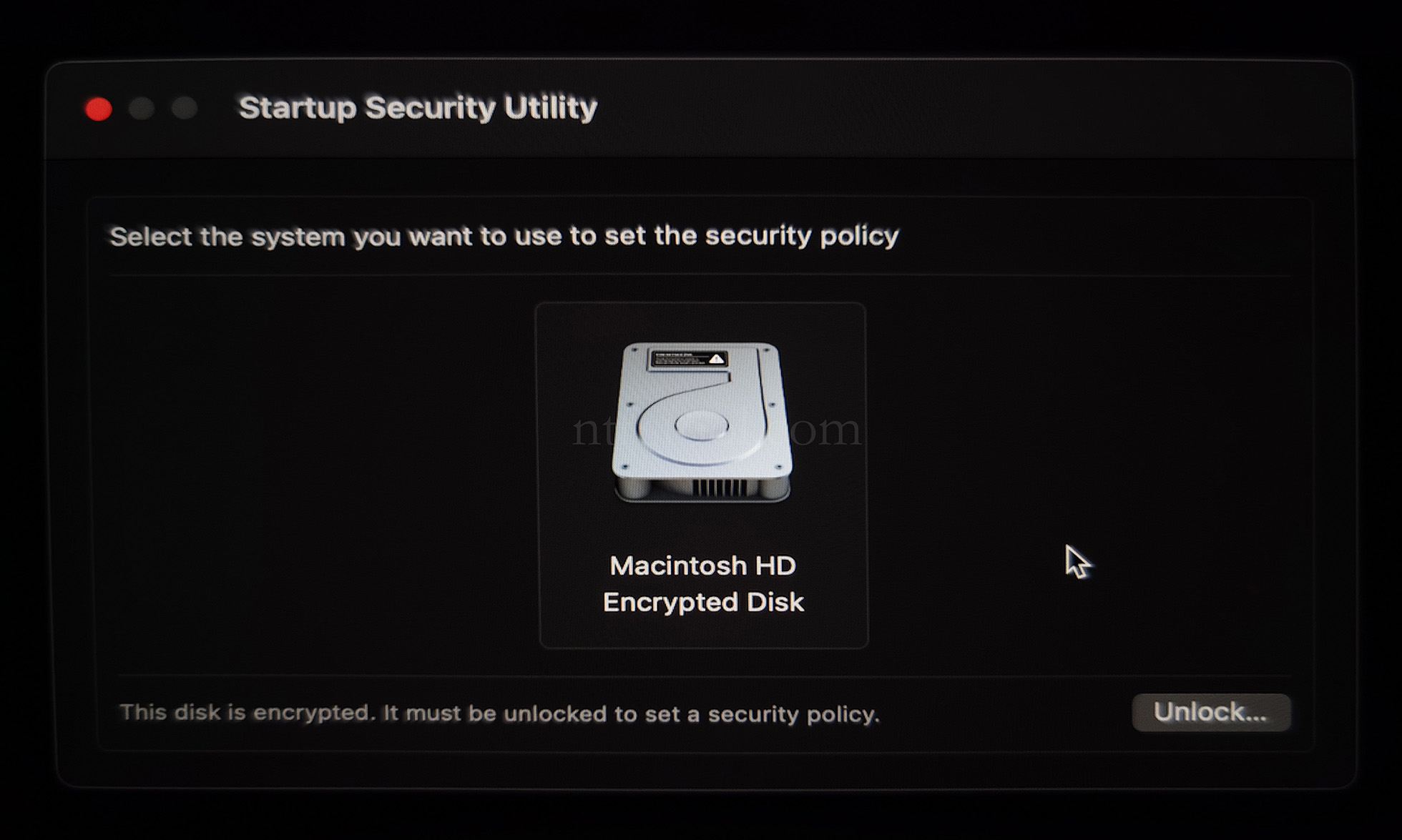
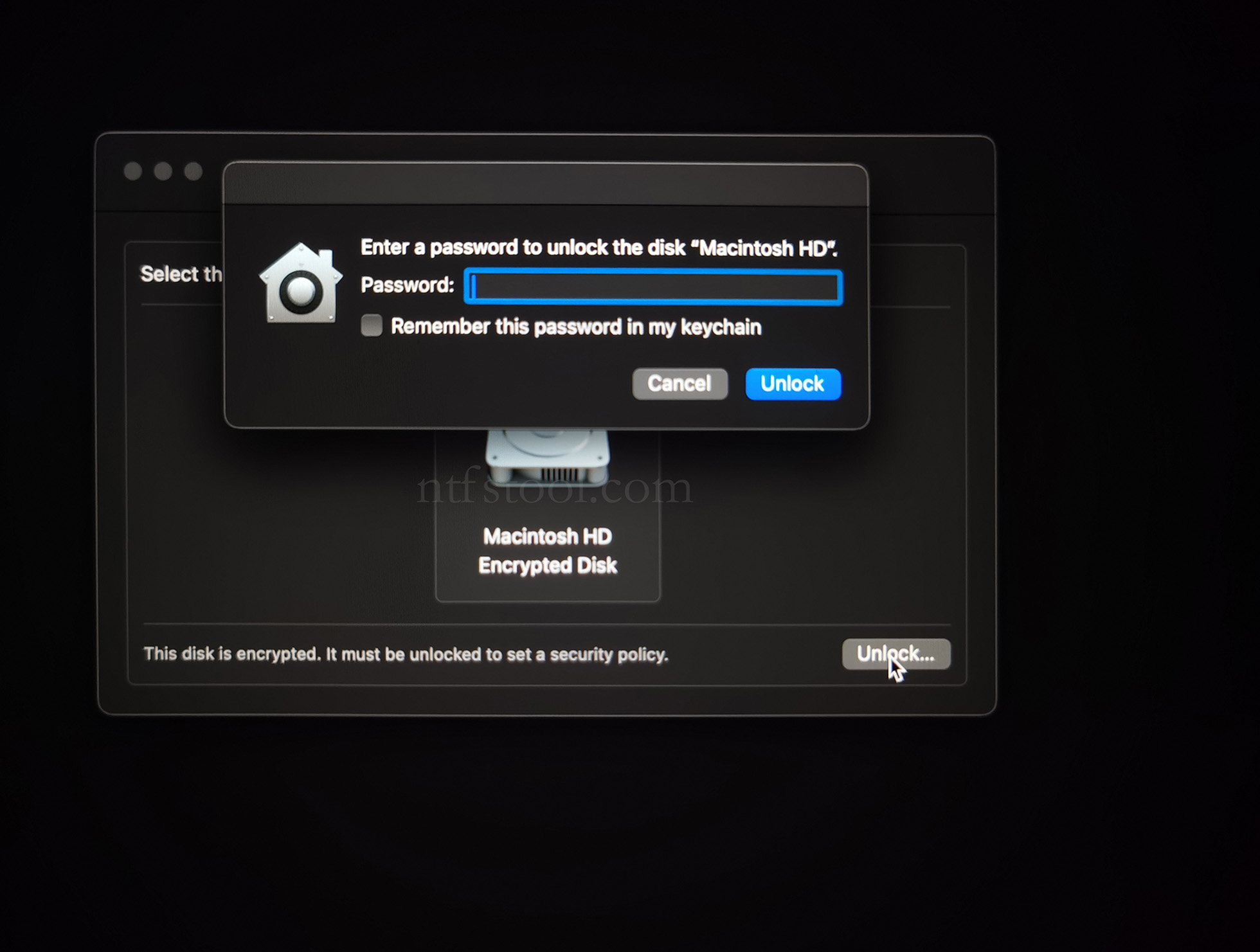
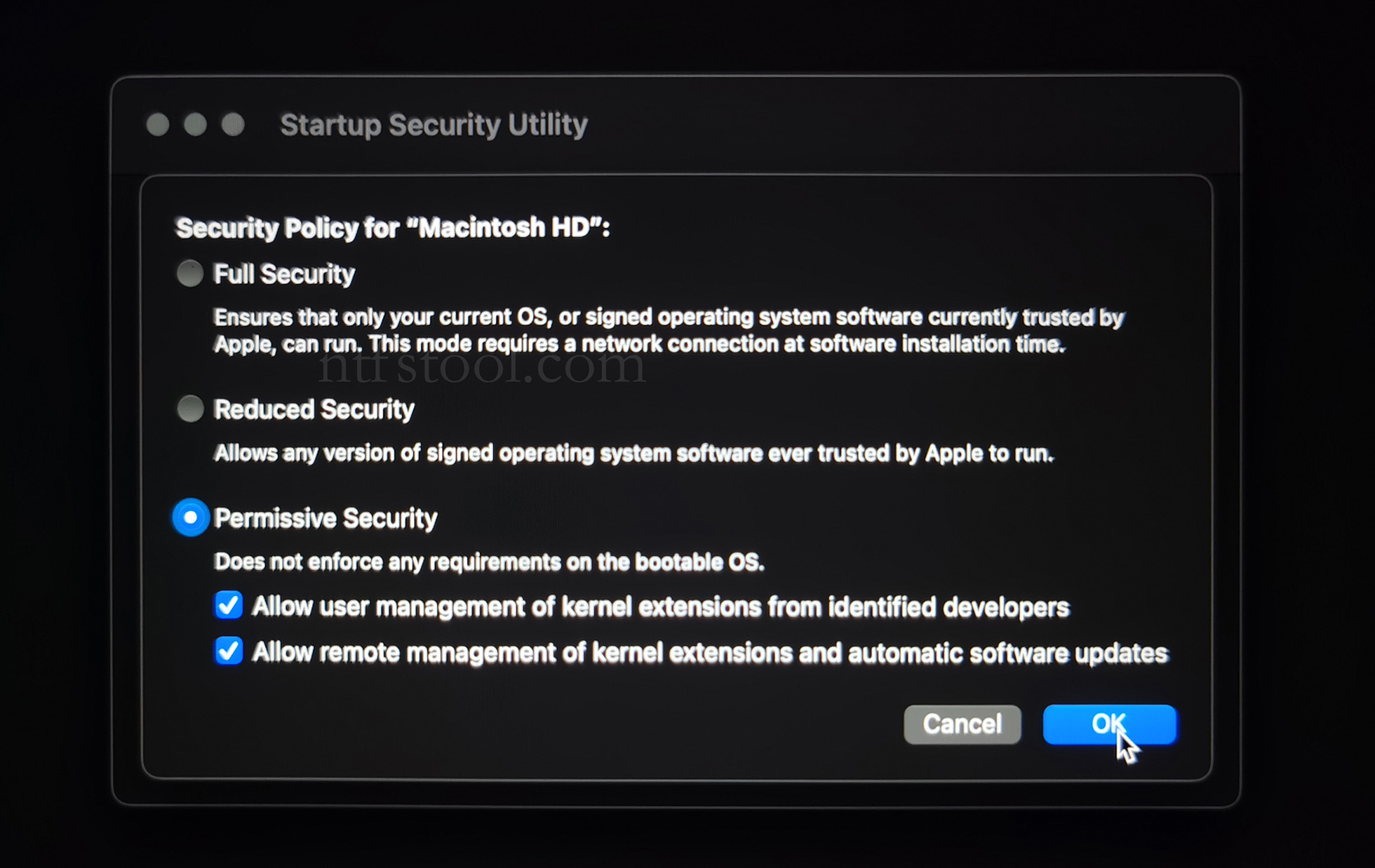
- Click 'Utilities' in the top toolbar, select 'Startup Security Utility'
- Select the system disk, then click 'Security Policy' at the bottom right
- Check 'Reduced Security' and 'Allow user management of kernel extensions from identified developers', then click 'OK' to confirm
- Click the Apple logo in the top left corner, restart the system
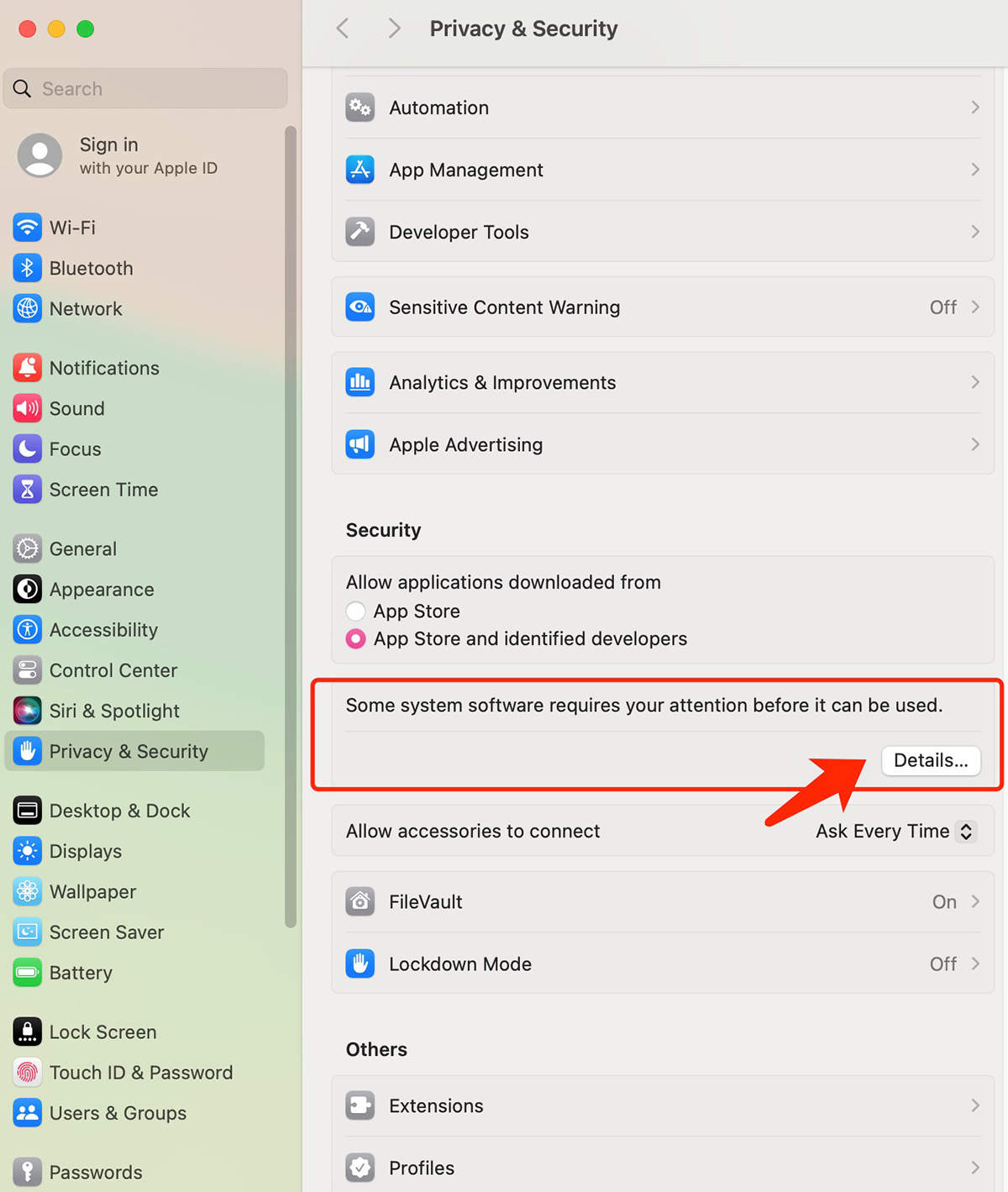
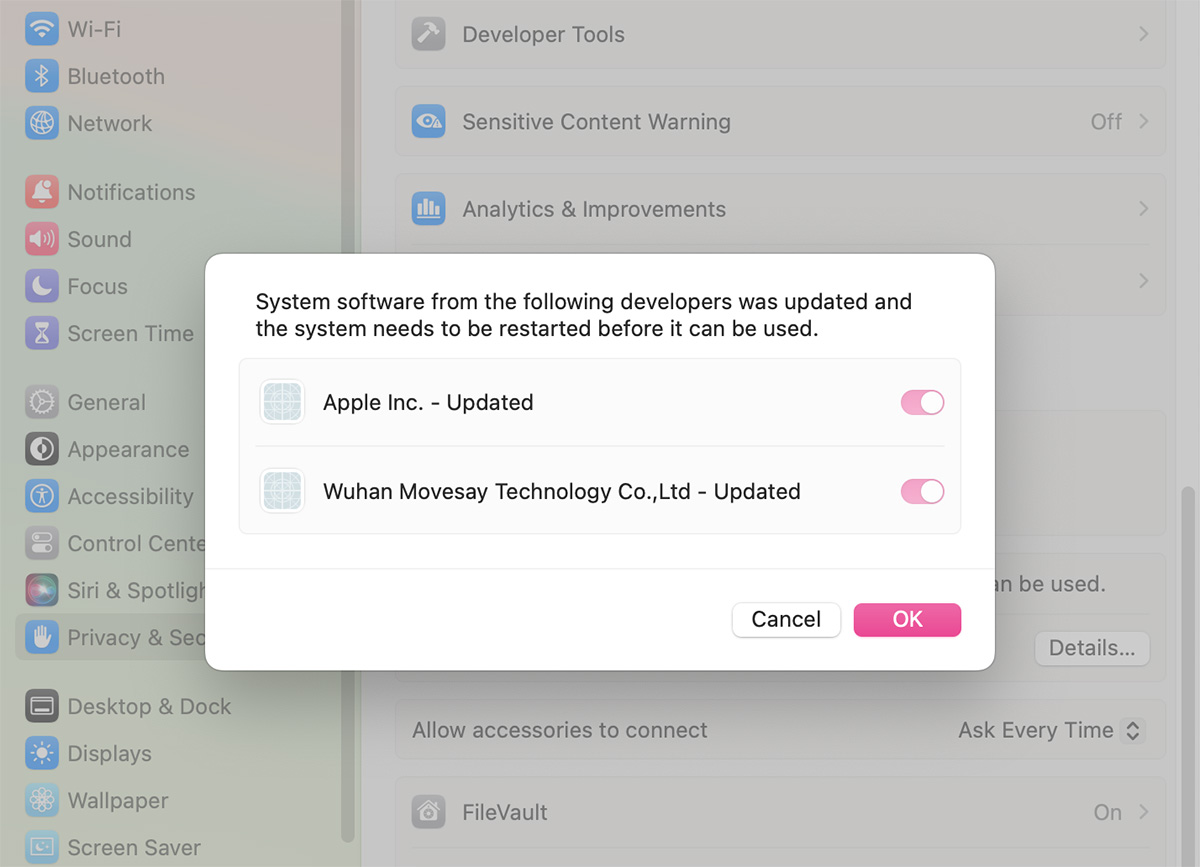
- After the system restarts, open System Settings (newer macOS no longer uses the old “Security” / “安全性” standalone entry). On the left choose Privacy & Security (隐私与安全性), scroll down to the Security section shown below
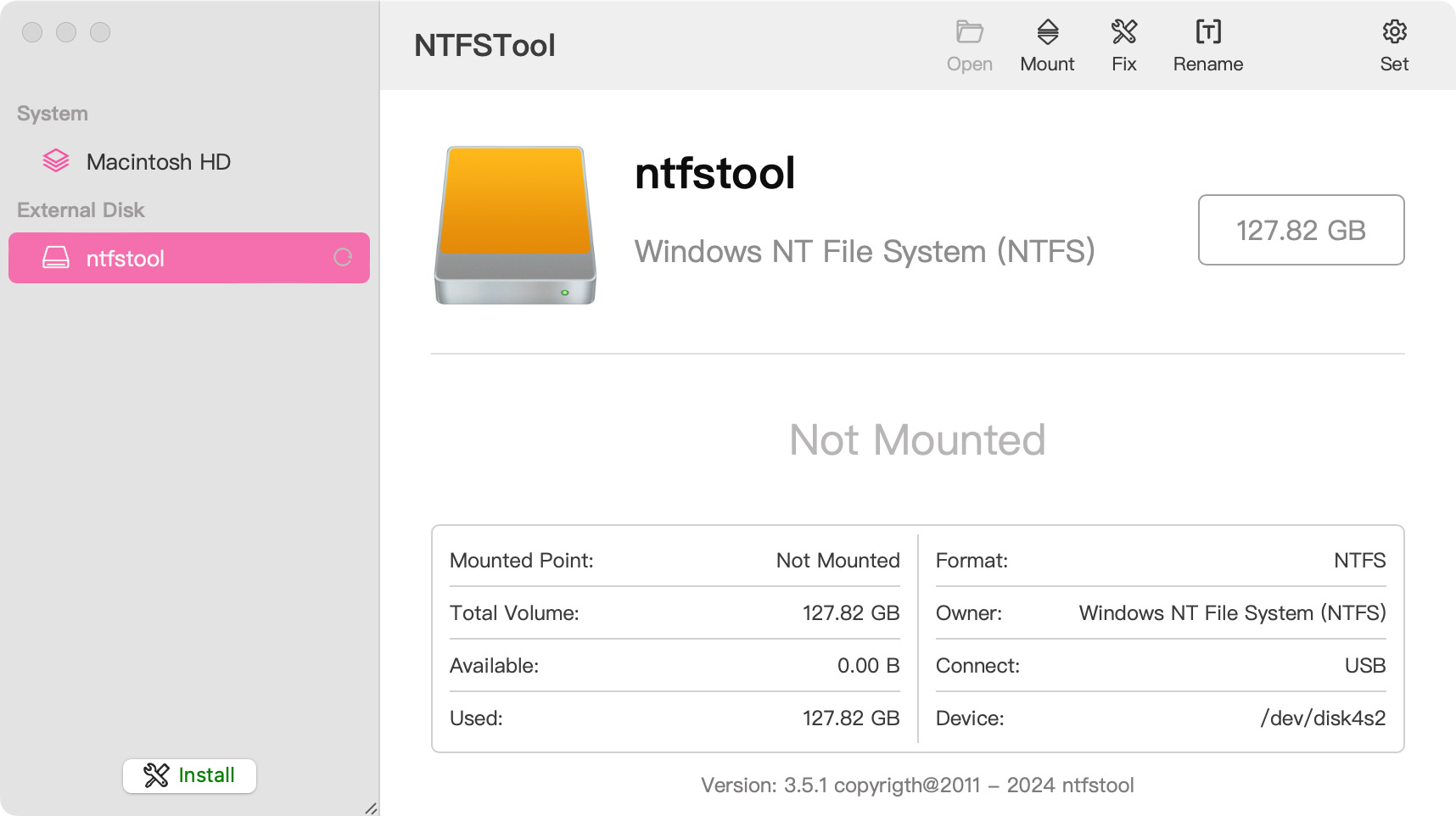
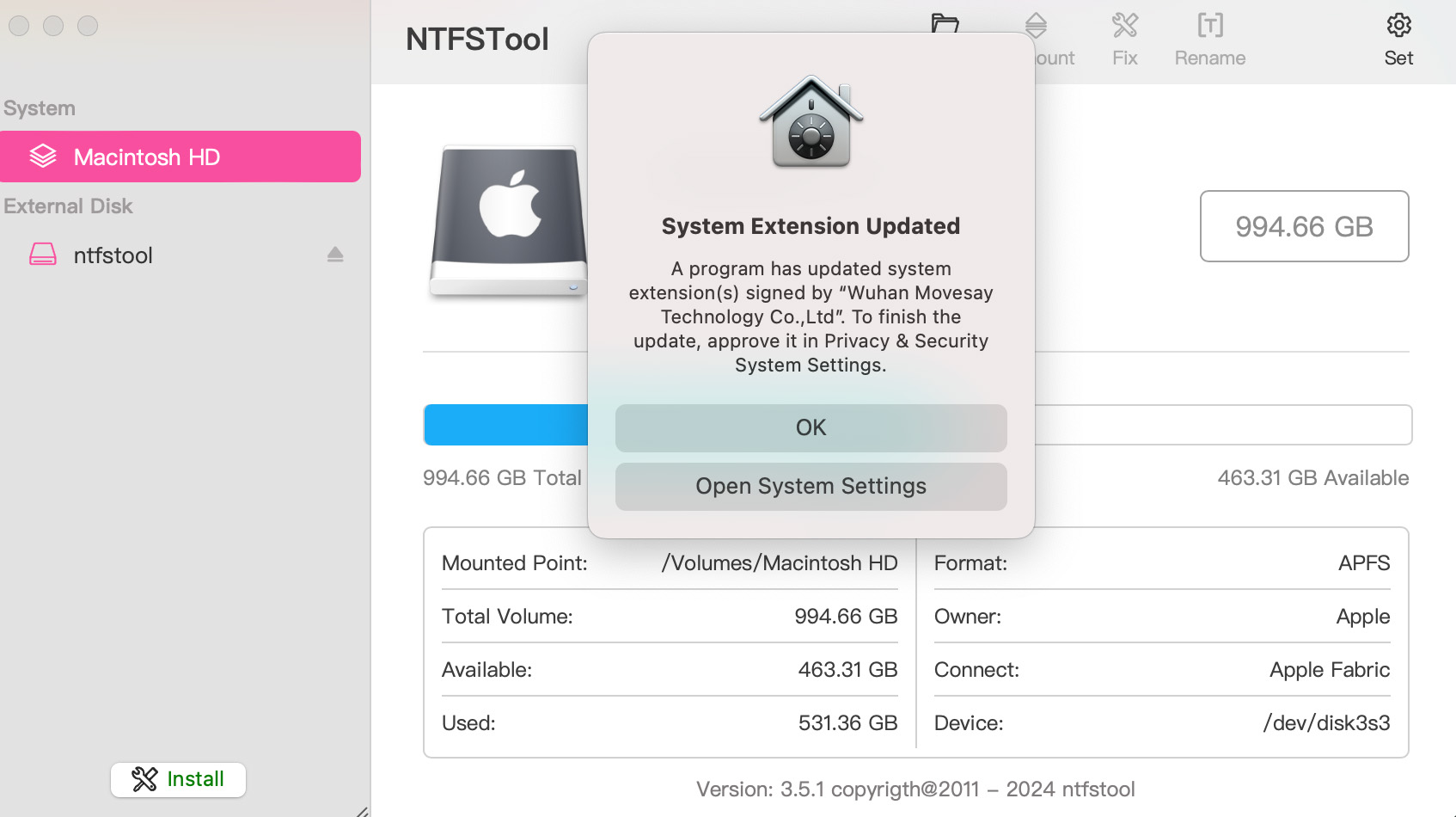
- If you do not see an Allow button yet, plug in your NTFS disk / launch NTFSTool once so the approval prompt appears, then click Allow, enter the password, and restart
- Click allow, enter the password, and restart the computer to complete
- Related Screenshots